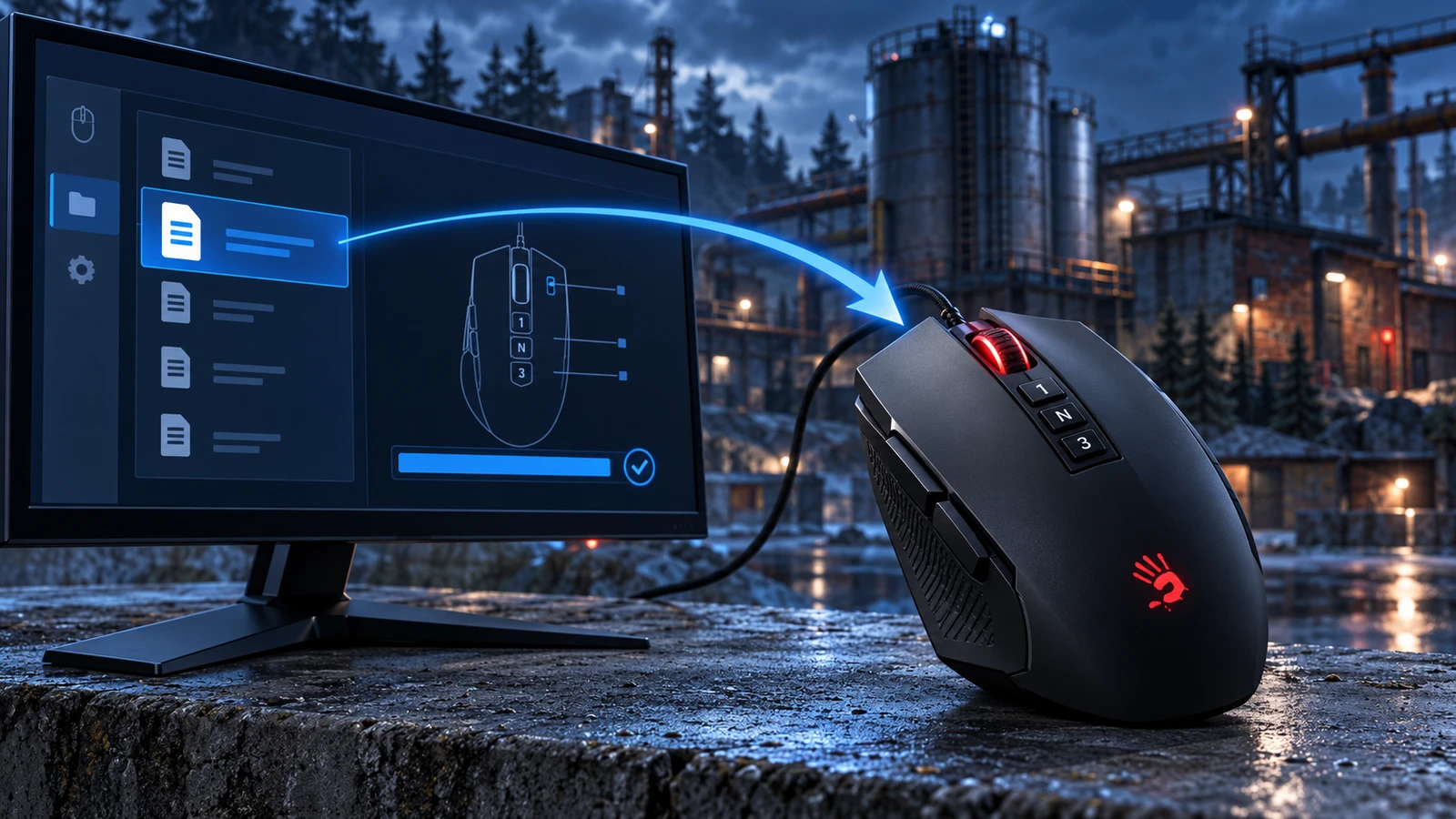
Macros for an A4Tech Bloody mouse are installed through its own software: macro files are imported into the program and written to the mouse memory. Below is a step-by-step installation in Bloody WorkShop 8, the latest version of the software, and in Bloody7, followed by a comparison with Nova Macro scripts, which need none of this.
What you need
- A Bloody mouse that supports macros. The download section of the official Bloody website shows which software your model needs: for most mice it is Bloody WorkShop 8 and Bloody7. Some models — for example, the wireless R72 and R73 and the ES series — have their own software, and the steps there are different.
- Activated Ultra Core 3 and Ultra Core 4 modes. Without them, macros cannot be loaded into the mouse. Mice marked Activated on the box and the body come activated from the factory; the rest are activated with a paid code from the official Bloody store.
- Macro files in .amc or .mgn format — as a rule, one file per weapon. They usually come with the in-game sensitivity and DPI they were recorded for.
- Windows 10 or 11 — Bloody WorkShop 8 runs on them.
Installing with Bloody WorkShop 8
Download the software
Open the download section of the official Bloody website, pick your mouse model and download Bloody WorkShop 8 — upgrading to it from Bloody7 is free. Install it: choose the language, click Next twice, wait for the installation to finish and click OK. Get the software and the activation code only from the official website: unofficial builds and activations can brick the mouse.
Create a folder for the game
Plug in the mouse and run the software as administrator. Open Macro Settings, the Oscar III tab, click New Game, enter the name of the game and click OK — this folder will hold its macros.
Import the macros
Select the folder you created and click File In/Out. In the Path field, point to the folder with your macro files, select the files you need and click the arrow: the macros appear in the game folder. Click OK.
Write the macro to the mouse
Go to the Button tab (it is available in Full Key Programming mode) and pick a profile starting from the second one: the left button cannot be assigned in the first. Select the left mouse button, open the game folder, choose the macro for the weapon you need and click APPLY — the macro is written to the mouse memory. Assign macros for other weapons to other profiles the same way and switch between them in the game.
Set your sensitivity
Set the in-game sensitivity, and the DPI in the Bloody software, that the macros were recorded for: a macro repeats one recorded movement, and with other settings it compensates recoil inaccurately. Before a match, test each macro on the shooting range.
If you have Bloody7
Bloody7 is the previous version of the software, available on the same download page. In it, the order is:
- Open the Oscar Macro II editor, on the File tab click File in/out, select your macro files and click the green arrow.
- Turn on Ultra Core 4 mode and open the Button section.
- Switch the Standard profile to any of the Gaming profiles — the left button appears in the list of buttons.
- Assign a macro to the left button and click APPLY.
Bloody7 keeps imported macros in the program folder, one folder per game:
C:\Program Files (x86)\Bloody7\Bloody7\Data\Mouse\English\ScriptsMacros\GunLib
Bloody or Nova Macro
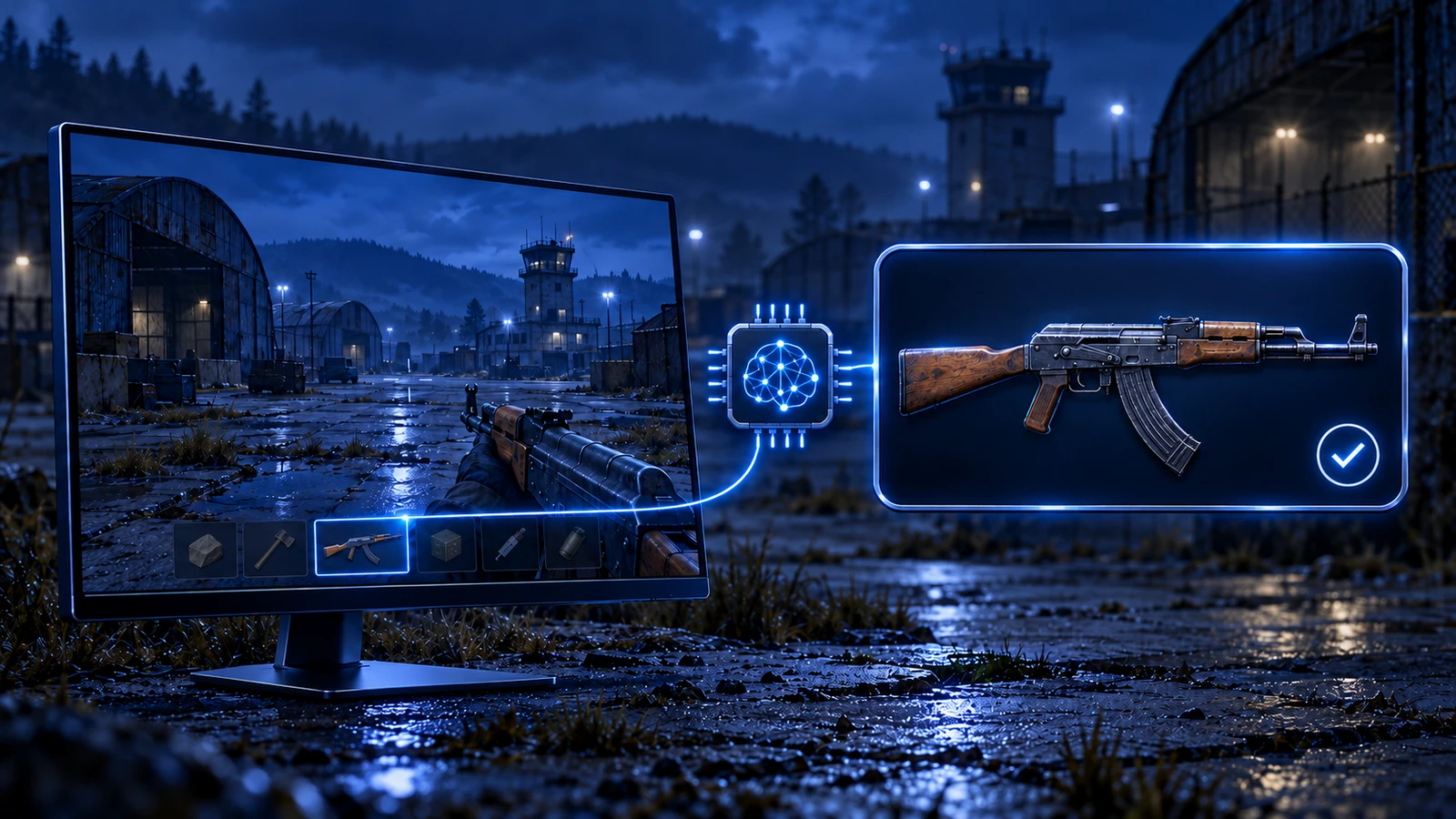
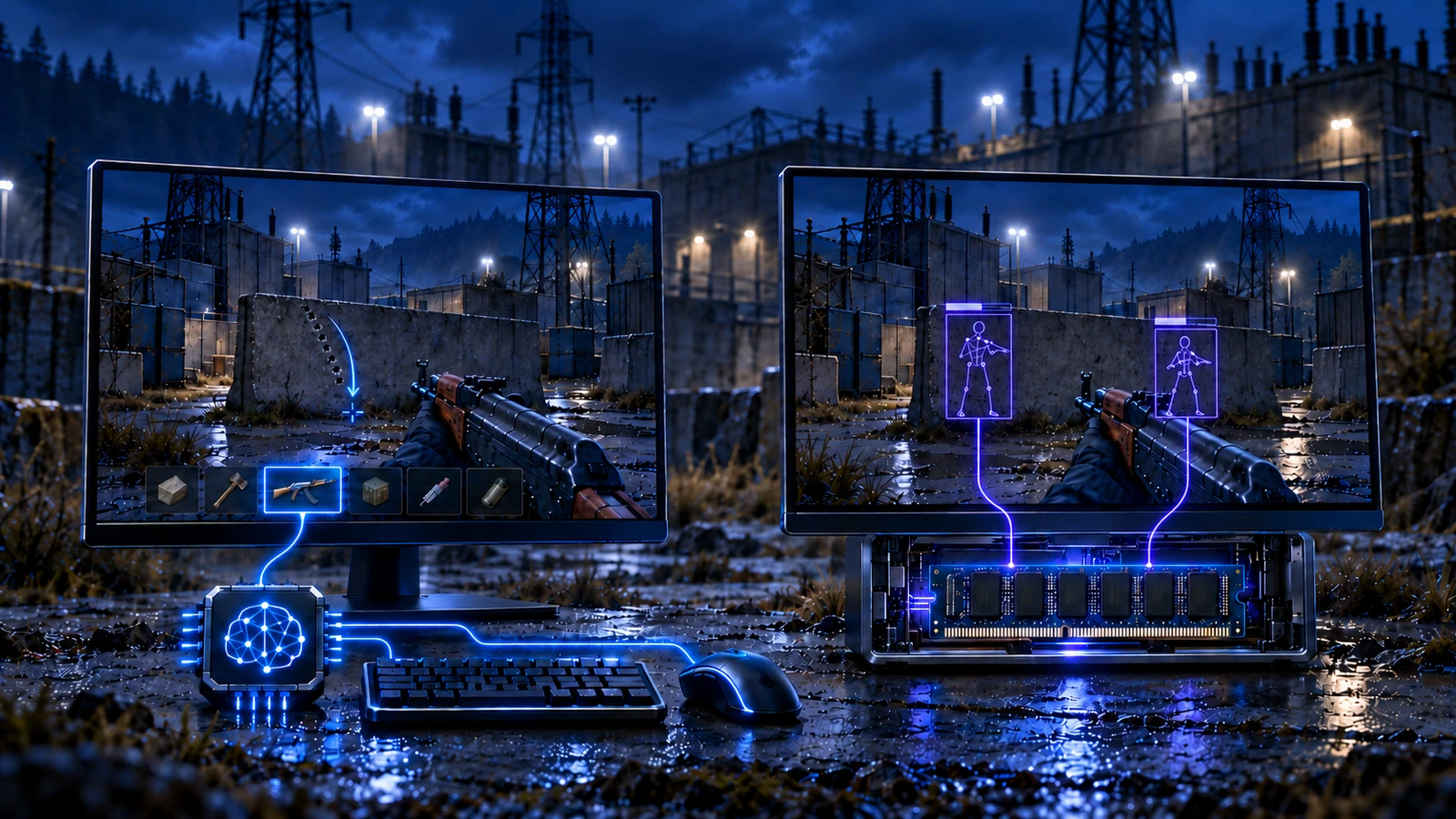
The installation above is one-time only on paper: you need a macro for every weapon, and after a game patch it all starts over. Nova Macro scripts work differently — they are a program on your computer that sees the screen and adapts to the weapon in your hands on its own, so nothing needs to be written to the mouse.
Bloody macros
- Bloody mice with activated Ultra Core 3 and 4 only — activation is paid if the mouse is not Activated
- Every macro is a separate file: find it, import it, write it to the mouse
- You switch weapons, scopes and attachments yourself mid-fight
- Compensate recoil only at the sensitivity and DPI they were recorded for
- After a game patch, macros have to be found and installed again
Nova Macro scripts
- Work with any mouse — Bloody, Logitech, Razer or a plain office one
- Nothing to activate or write to the mouse
- The program recognizes the weapon, scope and attachments from the picture on the screen
- Auto-setup tunes the program to your parameters on its own
- Updates for new patches arrive free and automatically on launch
How to start with Nova Macro
Choose a product
Open the store, choose your game and product and pay for it.
Get your key
After payment, you receive an activation key and a link to the guide you use to download the program.
Enter the key
Launch the program and enter your activation key.
Run auto-setup and play
Auto-setup tunes the program to your parameters on its own. If it does not suit you — for example, when playing through a second PC or in the cloud — the guide walks you through manual setup. The program recognizes the weapon on its own — there is nothing to switch.
// If your mouse already has Bloody macros
Remove them from the buttons you shoot with — for example, select a profile in the Bloody software with no macro on the left button. Otherwise both the mouse and Nova Macro compensate recoil at once, and your aim drifts down.
Choose your game
No activation, no macro files and no manual weapon switching — with any mouse, Bloody included.