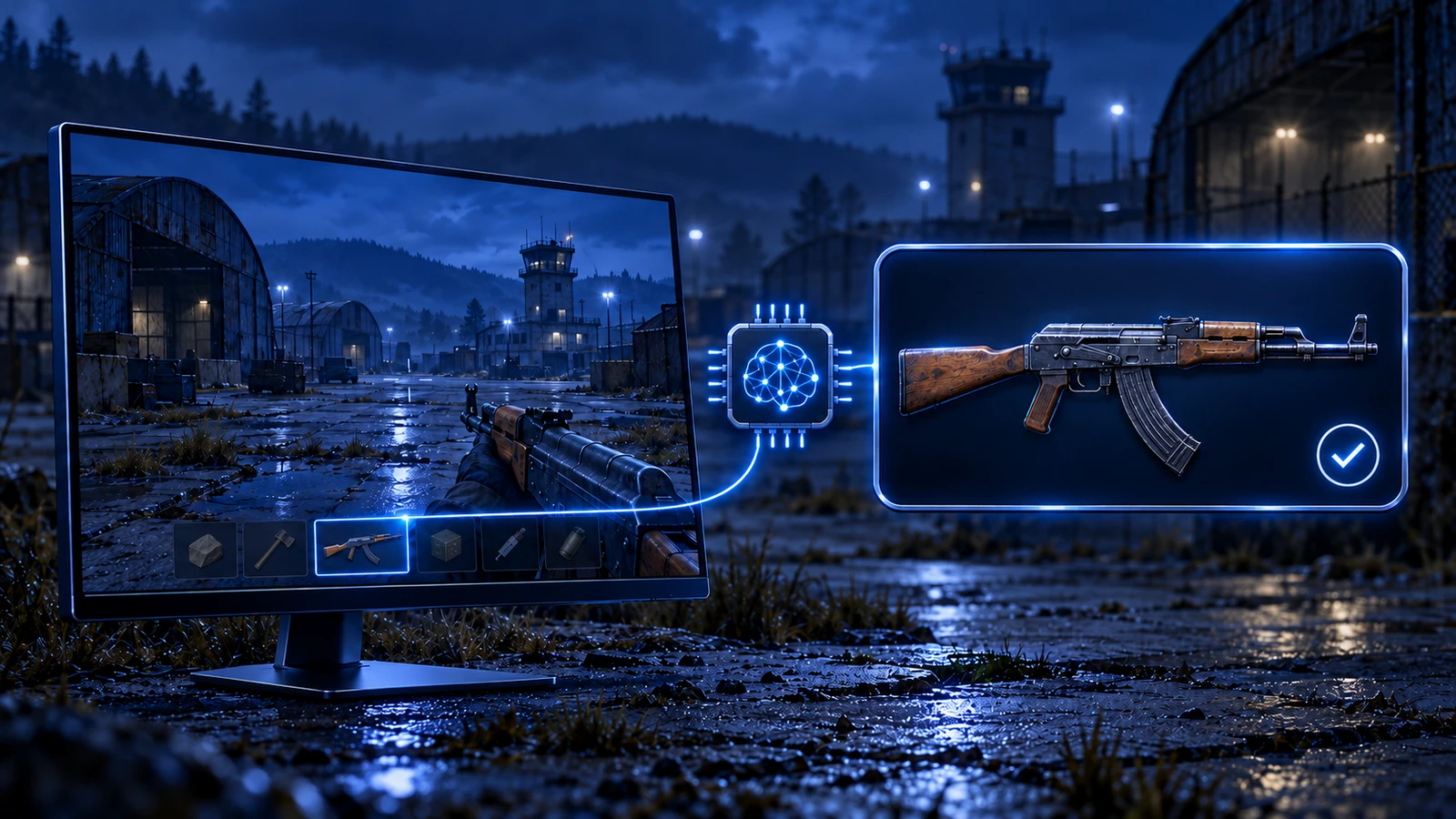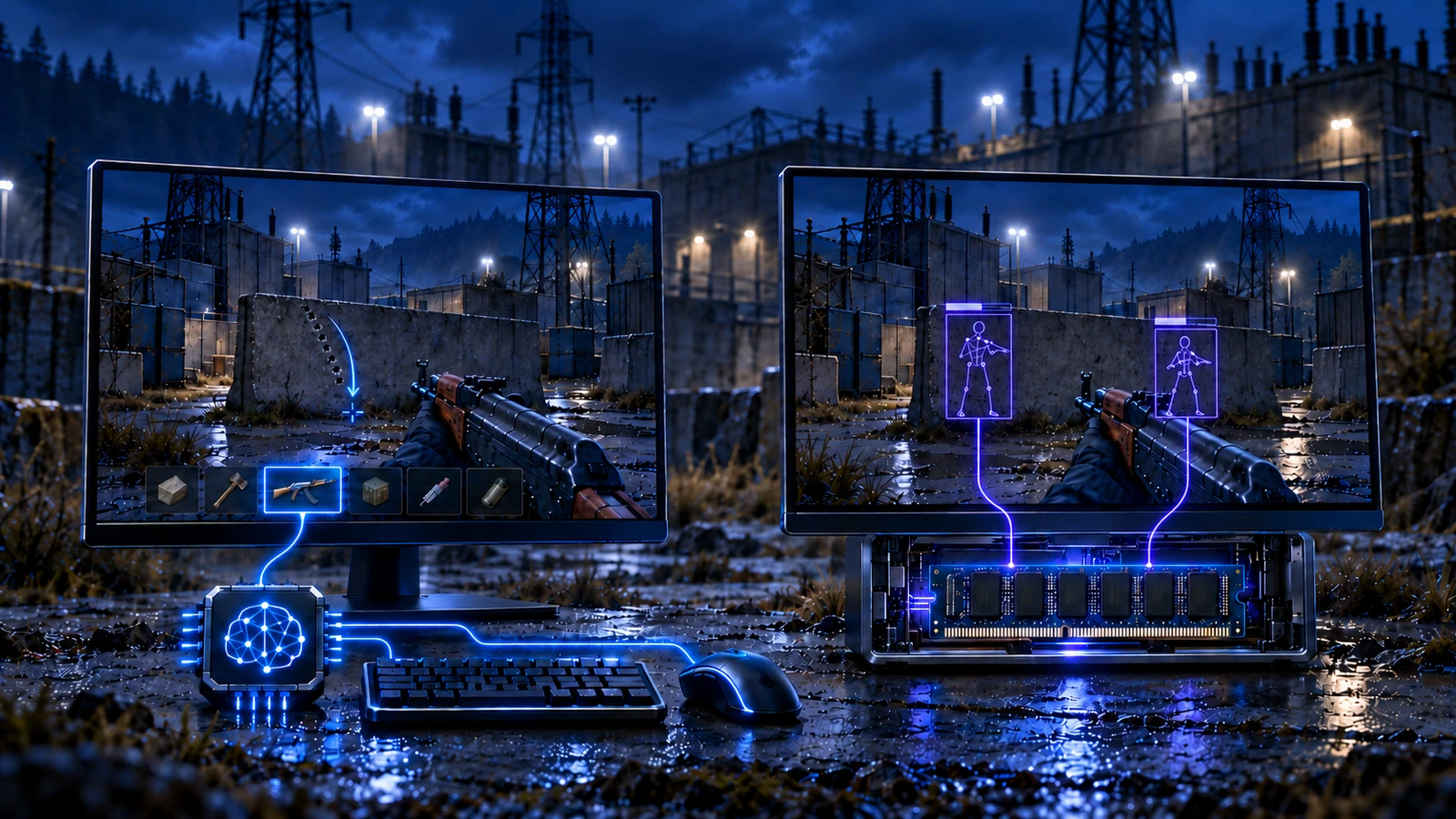

In cloud gaming, the game runs on the service’s server — GeForce Now (GFN) or a similar one — and your computer receives a video stream. For this case the program has a separate working method, Cloud gaming.
How it works
The program runs on your computer on top of the cloud client picture: it recognizes the weapon from the stream and moves the mouse the way you do. The game on the server receives regular mouse movements. No boards and no second PC are needed — this makes the method simpler than the hardware ones. The same method is used with unofficial game clients.
How to set it up
Prepare Windows
Turn off Windows protection and set the mouse pointer speed — see the Windows protection and System settings guides.
Set up the program manually
Auto-setup does not work in cloud gaming. Run the program as administrator, enter your key and set your in-game sensitivity and the other parameters from your product guide in the Settings tab.
Open the client fullscreen
Run the game in the cloud client fullscreen and set the stream quality higher: auto-detection works from the picture, and heavy compression can get in its way. Turn off NVIDIA and other graphics filters.
Check before a match
Shoot on a training map or range and make sure the weapon is detected and the recoil is compensated.
Latency
The cloud adds stream latency to the game, and it depends mostly on your network: a wired connection and a cloud server close to you are the most stable. The lower the latency, the sooner the picture reaches both you and the program.
// Method status
The current state of the Cloud gaming method for your game is on the status page.